Automated Multi-Dataset Analysis (AMDA)
AMDA is one of the main data providers handled by Speasy. All products are available either
through the AMDA module directly or through speasy.get_data().
Using speasy.get_data() should be preferred over AMDA module methods since it is more flexible and its interface is guaranteed to be more stable.
The following documentation focuses on AMDA module specific usage.
Basics: Getting data from AMDA
AMDA distributes several public or private products such as Parameters, Datasets, Timetables and Catalogs.
Speasy makes them accessible thanks to this module with get_data()
or their dedicated methods such as get_parameter(), get_user_parameter(),…
Note that you can browse the list of all available products from AMDA Workspace:
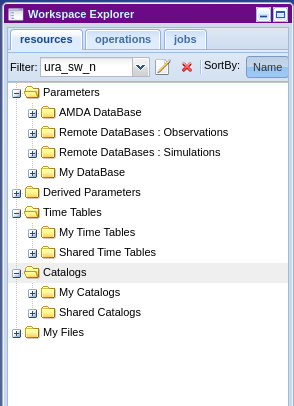
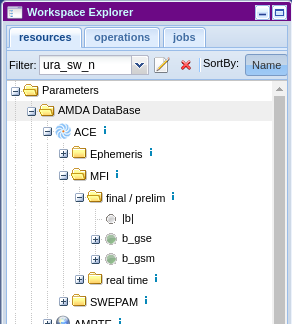
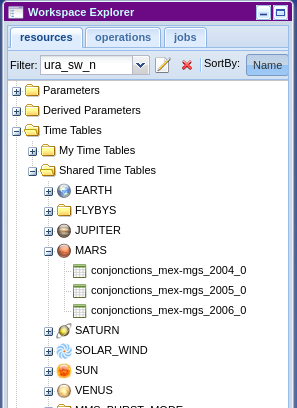
This module provides two kinds of operations, list or get and so user methods are prefixed with one of them.
get methods retrieve the given product from AMDA server, they take at least the product identifier and time range for time series
list methods list available products of a given type on AMDA, they return a list of indexes that can be passed to a get method
Parameters
Let’s start with a simple example, we want to download the first parameter available on AMDA:
>>> from speasy import amda
>>> first_param_index=amda.list_parameters()[0]
>>> print(first_param_index)
<ParameterIndex: He flux>
>>> first_param=amda.get_parameter(first_param_index, "2018-01-01", "2018-01-02T01")
>>> first_param.columns
['He flux[0]', 'He flux[1]']
>>> len(first_param.time)
288
Usually you already know which product you want to download, two scenarios are available:
1. You are an AMDA web interface user, so you want some specific product from AMDA Workspace. You need first to get your product id, you will find the id from the tooltip while hovering any product (Dataset, Parameter, Timetable or Catalog):
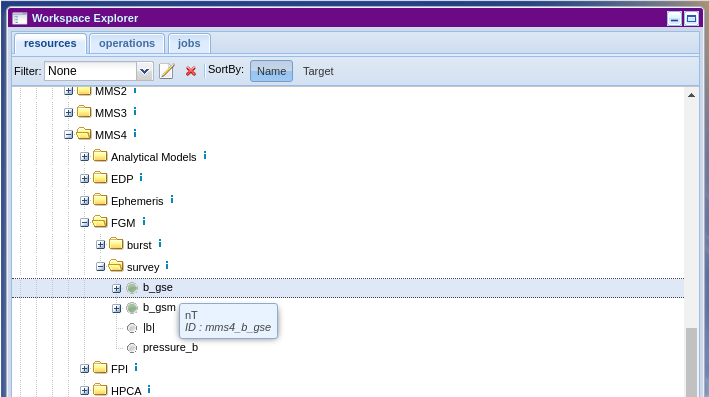
Then simply:
>>> from speasy import amda
>>> mms4_fgm_btot=amda.get_parameter('mms4_b_tot', "2018-01-01", "2018-01-01T01")
>>> mms4_fgm_btot.columns
['|b|']
>>> len(mms4_fgm_btot.time)
57600
2. Second scenario, you are not familiar with AMDA. You can browse Speasy’s dynamic inventory instead. In
the following example, we alias AMDA’s data tree as amdatree. Tab-completion works, so you can discover
AMDA products directly from your Python terminal or notebook:
>>> import speasy as spz
>>> from speasy import amda
>>> amdatree = spz.inventories.tree.amda
>>> mms4_fgm_btot=amda.get_parameter(amdatree.Parameters.MMS.MMS4.FGM.mms4_fgm_srvy.mms4_b_tot, "2018-01-01", "2018-01-01T01")
>>> mms4_fgm_btot.columns
['|b|']
>>> len(mms4_fgm_btot.time)
57600
See get_parameter() or get_data() for more details.
Catalogs and TimeTables
Downloading Catalogs and TimeTables from AMDA is similar to Parameters. For example let’s assume you want to download the first available catalog:
>>> from speasy import amda
>>> first_catalog_index=amda.list_catalogs()[0]
>>> print(first_catalog_index)
<CatalogIndex: model_regions_plasmas_mms_2019>
>>> first_catalog=amda.get_catalog(first_catalog_index)
>>> first_catalog
<Catalog: model_regions_plasmas_mms_2019>
>>> len(first_catalog)
12691
>>> print(first_catalog[1])
<Event: 2019-01-01T00:24:04+00:00 -> 2019-01-01T00:24:04+00:00 | {'classes': '1'}>
Exactly the same with a TimeTable:
>>> from speasy import amda
>>> first_timetable_index=amda.list_timetables()[0]
>>> print(first_timetable_index)
<TimetableIndex: FTE_c1>
>>> first_timetable=amda.get_timetable(first_timetable_index)
>>> first_timetable
<TimeTable: FTE_c1>
>>> len(first_timetable)
782
>>> print(first_timetable[1])
<DateTimeRange: 2001-02-02T17:29:29+00:00 -> 2001-02-02T17:29:30+00:00>
As with Parameters you can also use the ID found on AMDA web user interface:
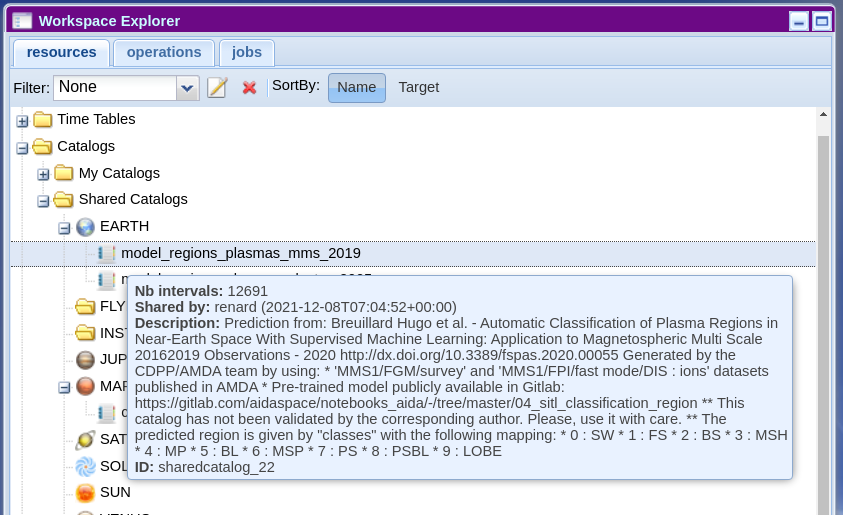
Then simply:
>>> from speasy import amda
>>> catalog_mms_2019=amda.get_catalog("sharedcatalog_22")
>>> catalog_mms_2019
<Catalog: model_regions_plasmas_mms_2019>
>>> len(catalog_mms_2019)
12691
>>> print(catalog_mms_2019[1])
<Event: 2019-01-01T00:24:04+00:00 -> 2019-01-01T00:24:04+00:00 | {'classes': '1'}>
And also alternatively you can use the dynamic inventory:
>>> from speasy import amda
>>> import speasy as spz
>>> amdatree = spz.inventories.tree.amda
>>> catalog_mms_2019=amda.get_catalog(amdatree.Catalogs.SharedCatalogs.EARTH.model_regions_plasmas_mms_2019)
>>> catalog_mms_2019
<Catalog: model_regions_plasmas_mms_2019>
>>> len(catalog_mms_2019)
12691
>>> print(catalog_mms_2019[1])
<Event: 2019-01-01T00:24:04+00:00 -> 2019-01-01T00:24:04+00:00 | {'classes': '1'}>
Datasets
A Dataset groups every parameter belonging to the same instrument/dataset
into a single object, so you don’t have to fetch and align each parameter separately:
>>> import speasy as spz
>>> import datetime
>>> dataset = spz.amda.get_dataset("ace-imf-all", datetime.datetime(2000,1,1), datetime.datetime(2000,1,2))
>>> dataset
<Dataset: final / prelim
        variables: ['|b|', 'b_gse', 'b_gsm']
        time range: <DateTimeRange: 2000-01-01T00:00:11+00:00 -> 2000-01-01T23:59:55+00:00>
>>> len(dataset)
3
>>> # Index it like a dict of SpeasyVariable, keyed by parameter name
>>> dataset['b_gse'].columns
['bx', 'by', 'bz']
>>> # Iterating yields variable names, like a dict
>>> sorted(list(dataset))
['b_gse', 'b_gsm', '|b|']
Derived (templated) parameters
Some AMDA parameters are derived: they are templates with arguments (for example a
spacecraft or a model choice) that you fill in at request time. Pass the argument values
with the product_inputs keyword:
import speasy as spz
data = spz.get_data("amda/some_templated_parameter", "2018-01-01", "2018-01-02",
                    product_inputs={'argument_name': 'value'})
Any argument you omit falls back to its default value, and Speasy emits a warning telling you which default was used and how to set it explicitly. Arguments declared as a list on AMDA only accept one of their allowed values; anything else raises an error naming the allowed choices.
Note
AMDA can serve data in several formats server-side, but Speasy currently only supports
cdf_istp — leave the output_format keyword argument (and the
config.amda.output_format setting) at its default value.
Some examples using AMDA products
My first plot from AMDA
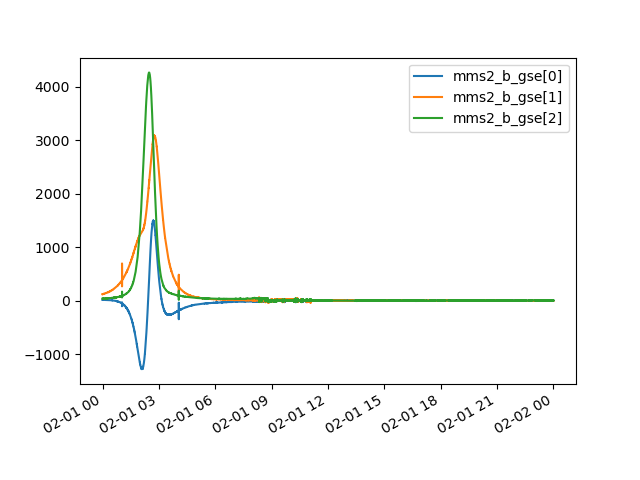
In this example we will use AMDA module to retrieve and plot MMS2 FGM data, feel free to change the code and experiment!
>>> import matplotlib.pyplot as plt
>>> import speasy as spz
>>> amdatree = spz.inventories.tree.amda
>>> mms2_b_gse = spz.amda.get_parameter(amdatree.Parameters.MMS.MMS2.FGM.mms2_fgm_srvy.mms2_b_gse, "2019-01-01", "2019-01-02")
>>> # Check that mms2_b_gse isn't empty
>>> len(mms2_b_gse)
816750
>>> # Then you can use the SpeasyVariable plot method for quick plots
>>> mms2_b_gse.plot()
>>> plt.show()
Then you should get something like this:
Note
Depending on your matplotlib backend and if you are using Jupyter Notebooks or a simple python terminal you may need to adapt this example.
Speasy is not a plotting package, to produce publication ready figures, use something like matplotlib or seaborn directly.
Using timetables to download data
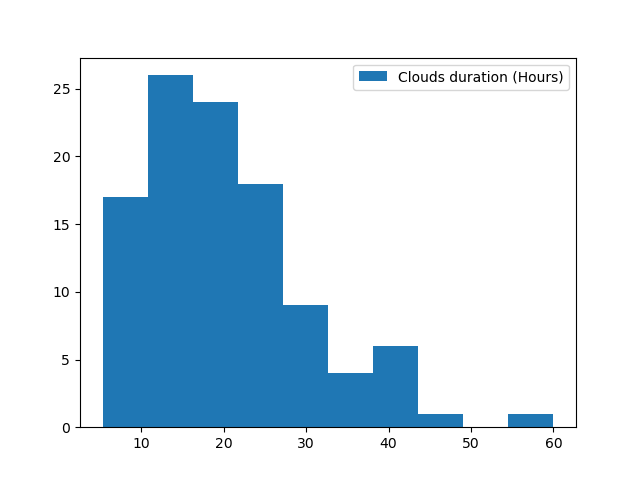
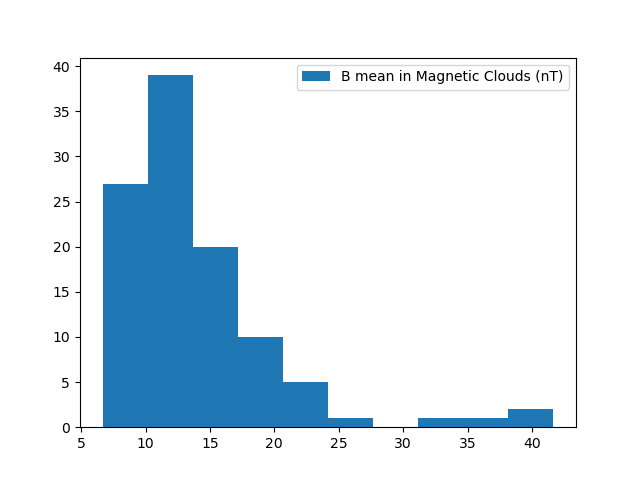
In this example we will use AMDA to first retrieve a public timetable containing time intervals where Magnetic Clouds were detected with Wind spacecraft. Then download the magnetic field magnitude measured with MFI instrument for each interval where a Magnetic cloud was found. Once we have magnetic field measurements inside each cloud, we will as an example plot the average distribution.
>>> import matplotlib.pyplot as plt
>>> import numpy as np
>>> import speasy as spz
>>> amda_timetables = spz.inventories.tree.amda.TimeTables
>>> amda_parameters = spz.inventories.tree.amda.Parameters
>>> Magnetic_Clouds = spz.amda.get_timetable(amda_timetables.SharedTimeTables.SOLAR_WIND.Magnetic_Clouds)
>>> print(Magnetic_Clouds.meta['description'])
Magnetic Clouds from WIND/MFI 1995-2007 -- Estimated start and end times from a magnetic field model [Lepping et al., 1990] which assumes that the field within the magnetic cloud is force free, i.e., so that the electrical current and the magnetic field are parallel and proportional in strength everywhere within its volume -- see http://lepmfi.gsfc.nasa.gov/mfi/mag_cloud_pub1.html ;
        Historic: From old AMDA;
        Creation Date :  2013-11-22T13:52:50;
>>> # Check that the timetable has at least some events (as expected)
>>> len(Magnetic_Clouds)
106
>>> # Then we can plot their duration distribution
>>> def duration(event):
...     return (event.stop_time.timestamp() - event.start_time.timestamp())/3600
...
>>> clouds_duration = [duration(cloud) for cloud in Magnetic_Clouds]
>>> plt.hist(clouds_duration, label="Clouds duration (Hours)")
>>> plt.legend()
>>> plt.show()
>>> # Now let's get MFI data for each cloud
>>> b_mfi_clouds = spz.get_data(amda_parameters.Wind.MFI.wnd_mfi_kp.wnd_bmag, Magnetic_Clouds)
>>> # compute mean of B for each cloud and ignore NaNs
>>> b_mean_mfi_clouds = [ np.nanmean(cloud.values) for cloud in b_mfi_clouds ]
>>> plt.hist(b_mean_mfi_clouds, label="B mean in Magnetic Clouds (nT)")
>>> plt.legend()
>>> plt.show()
Then you should get something like these plots:
Note
Depending on your matplotlib backend and if you are using Jupyter Notebooks or a simple python terminal you may need to adapt this example.
Speasy is not a plotting package, to produce publication ready figures, use something like matplotlib or seaborn directly.
Advanced: AMDA module configuration options
AMDA user login
Most AMDA features are available without login, except for user-created products and private parameters from the AMDA web interface. You can configure Speasy to store your AMDA credentials:
>>> from speasy import config
>>> config.amda.username.set('my_username')
>>> config.amda.password.set('my_password')
>>> # check that your login/password are correctly set
>>> config.amda.username.get(), config.amda.password.get()
('my_username', 'my_password')
Once configured, you can list and get user products:
>>> from speasy import amda
>>> # list user products
>>> amda.list_user_parameters()
[<ParameterIndex: test_param>]
>>> amda.list_user_catalogs()
[<CatalogIndex: MyCatalog>]
>>> amda.list_user_timetables()
[<TimetableIndex: test_alexis>, <TimetableIndex: test_alexis2>, <TimetableIndex: tt3>]
>>> # get my first user catalog
>>> amda.get_user_catalog(amda.list_user_catalogs()[0])
<Catalog: MyCatalog>
You can also access the private parameters (only if you are a member of a private group in AMDA):
>>> import speasy as spz
>>> private_data = spz.get_data(spz.inventories.tree.amda.PrivateParameters.mission.instrument.dataset.parameter, "2008-01-01", "2008-01-02")
AMDA cache retention
Parameter downloads rely on product version to decide if local data is up to date compared to remote data. Catalogs and timetables use a different time-based cache: by default they are cached for 15 minutes. If a timetable or catalog has changed on AMDA servers, it may take up to the configured duration before the update is visible. This cache is designed for interactive usage where you may run the same command multiple times in a short amount of time.
To change this cache duration value:
>>> from speasy import config
>>> # set cache duration to 900 seconds
>>> config.amda.user_cache_retention.set(900)
>>> config.amda.user_cache_retention.get()
900
Note
This value is only read once, when Speasy imports the AMDA provider, so changing it takes effect starting with your next Python session — it does not change the cache duration for catalogs and timetables already fetched in the current session.